A cyberattack happens every 39 seconds, and more than 30,000 websites are hacked every single day (Clark School, University of Maryland and SophosLab). What makes this even more alarming is that most hacked websites go undetected for weeks or even months — giving attackers ample time to steal data, redirect visitors, inject spam, and permanently damage your search rankings and brand reputation.
If you are asking yourself any of the following questions right now, you are in the right place:
Is my website hacked?
How do I check if my website has been compromised?
What are the signs my website has been hacked?
How to recover my website from hacking?
What to do when my website is hacked?
How to clean my hacked website?
How to protect my website from future attacks?
Keeping your website safe from hackers is an ongoing battle. Lowering your guard — even briefly — puts your website, your visitors, and your business at serious risk.
In this complete guide updated for 2026, we cover three critical areas:
How to check if a website is hacked — signs, symptoms, and diagnostic tools
How to clean a hacked website — step-by-step recovery process
How to secure a website from future attacks — 2026 best practices
Whether you are a website owner, developer, or digital marketer, read this guide to the end — your website’s security, reputation, and SEO depend on it.
Warning Signs: How to Tell If Your Website Has Been Hacked
Modern hacking attacks are designed to stay hidden for as long as possible. Unlike the movies, you rarely see a dramatic “HACKED” banner on your homepage. Instead, the signs are subtle, scattered, and easy to miss if you don’t know what to look for. Here are the most common symptoms of a hacked website in 2026:
Visible and Behavioral Warning Signs
Homepage defacement: Your homepage has been replaced or altered with a “hacked by [name]” message, offensive content, or a political statement — the most obvious sign of a hack.
Visitors are being redirected: Users are automatically sent to spam sites, adult websites, fake pharmacy pages, or phishing pages — even though the site looks normal when you are logged in. This is called a redirect hack and is one of the most damaging types of attack.
Unwanted pop-ups and ads: You or your visitors are seeing pop-up ads or banners you never placed — these are often used to spread malware or harvest personal information.
New admin accounts you did not create: Hackers often add hidden admin users to retain access even after a surface-level cleanup.
Locked out of your admin panel: If your login credentials suddenly stop working, it could mean a hacker has changed them to take over your site.
Unknown plugins or theme files: Suspicious files, especially PHP files inside your wp-content/uploads/ folder, or unfamiliar plugins you never installed, are a major red flag.
Website loads slowly or crashes frequently: Malicious scripts running in the background — such as cryptocurrency miners or DDoS bots — consume server resources and cause performance drops.
Emails from your domain landing in spam: If your outbound emails are suddenly classified as spam or bounce, hackers may be using your server to send phishing emails.
SEO and Traffic Warning Signs
Sudden unexplained traffic drops: A sharp fall in organic traffic is often an early indicator that Google has flagged or penalized your site for malware or spam.
Strange keywords in Google search results: Your site snippet suddenly shows phrases like “cheap Viagra,” “online casino,” or appears in Japanese, Chinese, or other foreign-language characters — a classic sign of Japanese SEO spam or pharmaceutical hack.
Pages you never created appearing in Google index: Hackers inject thousands of spam pages targeting foreign-language search queries, which Google indexes and which show up in your Search Console coverage report.
Weird referral sources in your analytics: Sudden spikes in traffic from unusual geographic regions or unknown referral domains can indicate that bots are crawling or exploiting your site.
Technical Warning Signs
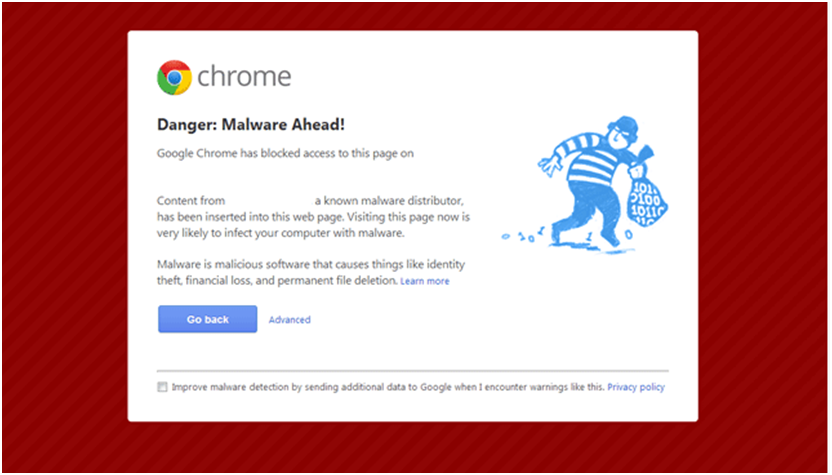
Browser warnings (“Deceptive site ahead”): Google Chrome, Firefox, and Safari use Google’s Safe Browsing database to warn users. If visitors see a red warning screen, your site has been blacklisted.
Hosting provider suspends your website: Hosting companies like GoDaddy, HostGator, and Bluehost automatically scan for malicious code. If they take your site offline, it is because they detected an active infection.
Core files have been modified: Hackers routinely alter key files like index.php, .htaccess, and wp-config.php. If timestamps on these files changed and you did not touch them, investigate immediately.
Security plugins are missing or disabled: Attackers often deactivate or delete security plugins to prevent detection of their presence.
Unusual server resource usage: Sudden spikes in CPU, memory, or bandwidth usage can indicate a botnet, crypto-miner, or DDoS component installed on your server.
Important: Many of these symptoms can also appear due to non-malicious technical issues. The only definitive way to confirm a hack is to run a proper security scan. Read on to learn exactly how.
A. How to Check If a Website Is Hacked
There are several reliable ways to detect whether your website has been attacked. Below are the most effective diagnostic methods, from easiest to most technical:
A.1. Check “Security Issues” Report of Google Search Console
Google Search Console is the single most authoritative tool for detecting whether Google has identified a security problem on your site. If you haven’t created an account, set one up immediately at https://search.google.com/search-console. For existing users, follow the steps below:
Log in to your Google Search Console account.
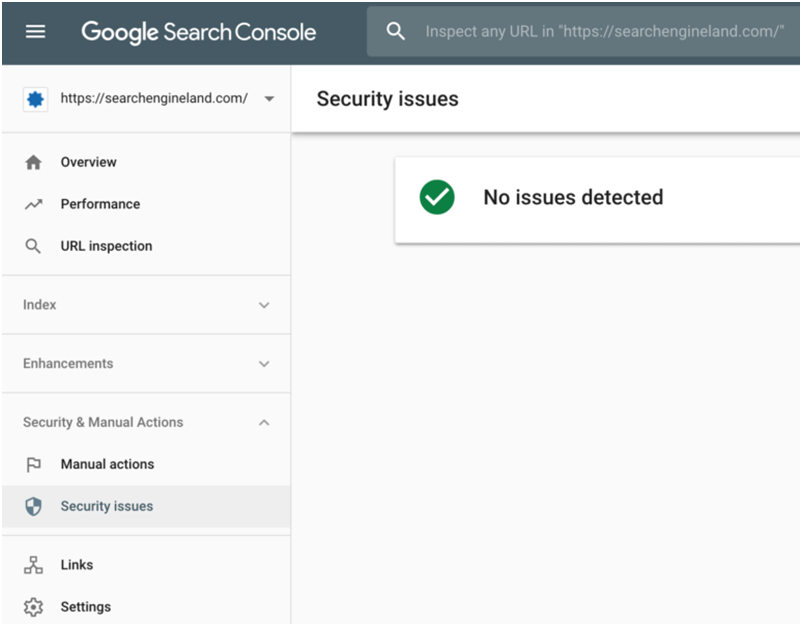
In the left sidebar, navigate to Security & Manual Actions → click Security Issues.
Review your Security Issues report in full and analyze any flagged items.
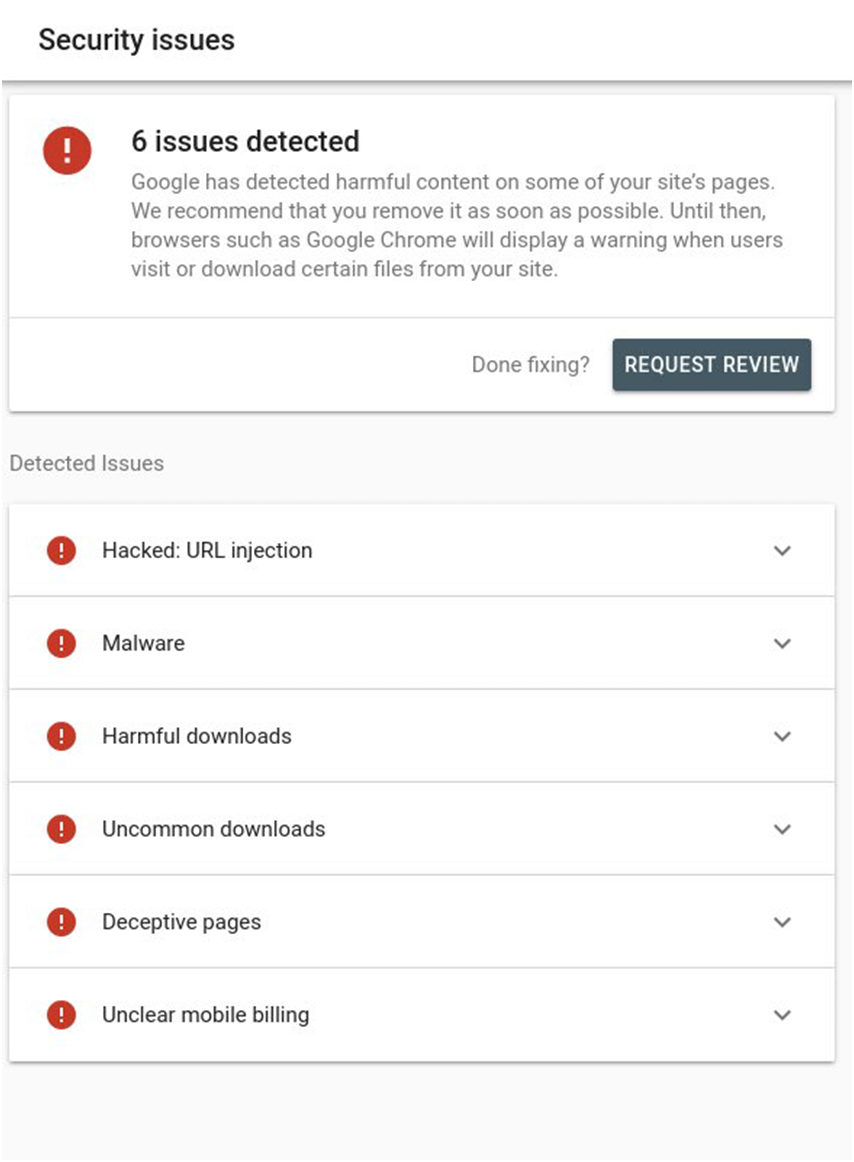
Here is a screenshot of what this report may look like if you have security issues:
Image Source: Search Engine Land
In case there is no security threat, you will see something like this:
Image Source: Search Engine Land
The Security Issues report flags all problems Google has found, including:
Act immediately if your report flags any issues. If your site is confirmed hacked, you need to move fast to recover your website and protect your visitors. Also note that GSC often provides example URLs and infected code snippets — use these as your starting point for cleanup. Once resolved, submit a Review Request directly from within Search Console.
Remember: if you have multiple websites on the same shared server, scan and check all of them — one infected site can spread malware to adjacent accounts.
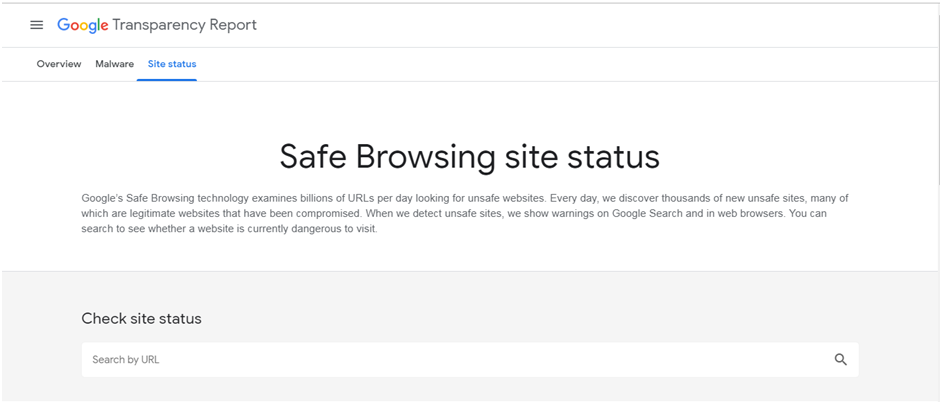
A.2. Check Website Status via Google’s Safe Browsing Tool
Google’s Safe Browsing service scans billions of URLs daily and maintains a constantly updated blocklist. Popular browsers — including Chrome, Firefox, and Safari — use this database to display red warning screens to visitors of unsafe sites. Use this tool for an instant external check:
Enter the full URL of your website in the search box.
Review the results — look for any “Unsafe” flags or malware warnings.
Image Source: Google Transparent Report
If the tool confirms your site is compromised, begin the recovery process immediately. Once you have resolved all issues, recheck your status here and also submit a review request in Google Search Console. Google typically reassesses and removes the blacklist flag within 24–72 hours when all issues have been genuinely resolved.
Additional free tools to check your site’s blacklist status:
VirusTotal (virustotal.com) — Scans your URL against 70+ malware engines and blacklist databases simultaneously.
Sucuri SiteCheck (sitecheck.sucuri.net) — Provides a free external malware and blacklist scan.
MalCare Site Scanner — Deep WordPress-specific scan with malware detection in 60 seconds.
A.3. Check Core File Integrity and Recently Modified Files
Most core website files should never be modified outside of legitimate updates. Hackers routinely alter key files like .htaccess, index.php, wp-config.php, and wp-login.php to inject malicious redirects, create backdoors, or plant malware. Checking these files for unauthorized changes is one of the most reliable ways to confirm a hack.
For developers, the fastest method is using the diff command in the terminal to compare your live files against a clean version from an official download. You can also verify files manually via SFTP.
To check for recently modified files on a Linux server, use these terminal commands:
To find recently modified files, type in the terminal:
Any unknown modifications within the last 30 days — especially to core PHP files — should be treated as suspicious and investigated immediately.
WordPress-specific tip: For WordPress sites, use a security plugin like Wordfence or Sucuri Security to run a file integrity scan. These tools compare every core file against the official WordPress repository and flag anything that has been altered, added, or removed — including backdoors hidden inside inactive theme folders or the wp-content/uploads/ directory, where PHP files should never normally exist.
A.4. Monitor Notifications from Hosting Providers and Browsers
Some of the earliest hack warnings arrive as notifications from external sources. Keep a close watch on all of the following channels:
Hosting Provider: Reputable hosts (GoDaddy, HostGator, Bluehost, SiteGround, etc.) run automated malware scans on their servers. When they detect malicious code, they will typically suspend the infected account and send an email alert. Check your hosting email and control panel regularly.
Internet Browser: Google Chrome and other major browsers display a red “Deceptive Site Ahead” or “This site may harm your computer” warning screen to any visitor of a blacklisted site — including you when you visit your own site from a non-logged-in, clean browser session.
Google Search Console: GSC sends email and dashboard alerts when it detects security issues, manual actions, or hacked content on your site. Make sure your GSC notification settings are enabled.
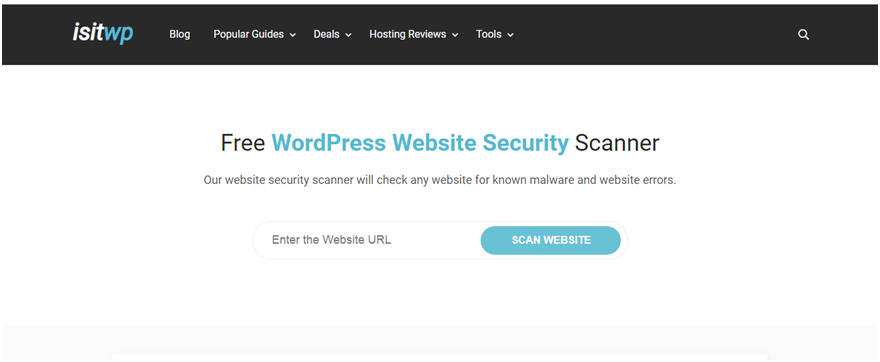
Third-party malware scanners: Tools like IsItWP WordPress scanner can alert you to catch security issues proactively before they escalate.
Image Source: Cypress North
When it comes to detecting cyber attacks, speed is everything. The sooner you find out, the faster you can respond — and the less damage occurs. Enable all available notification channels.
Image Source: isitwp.com
A.5. Check Google Search Results for Your Website
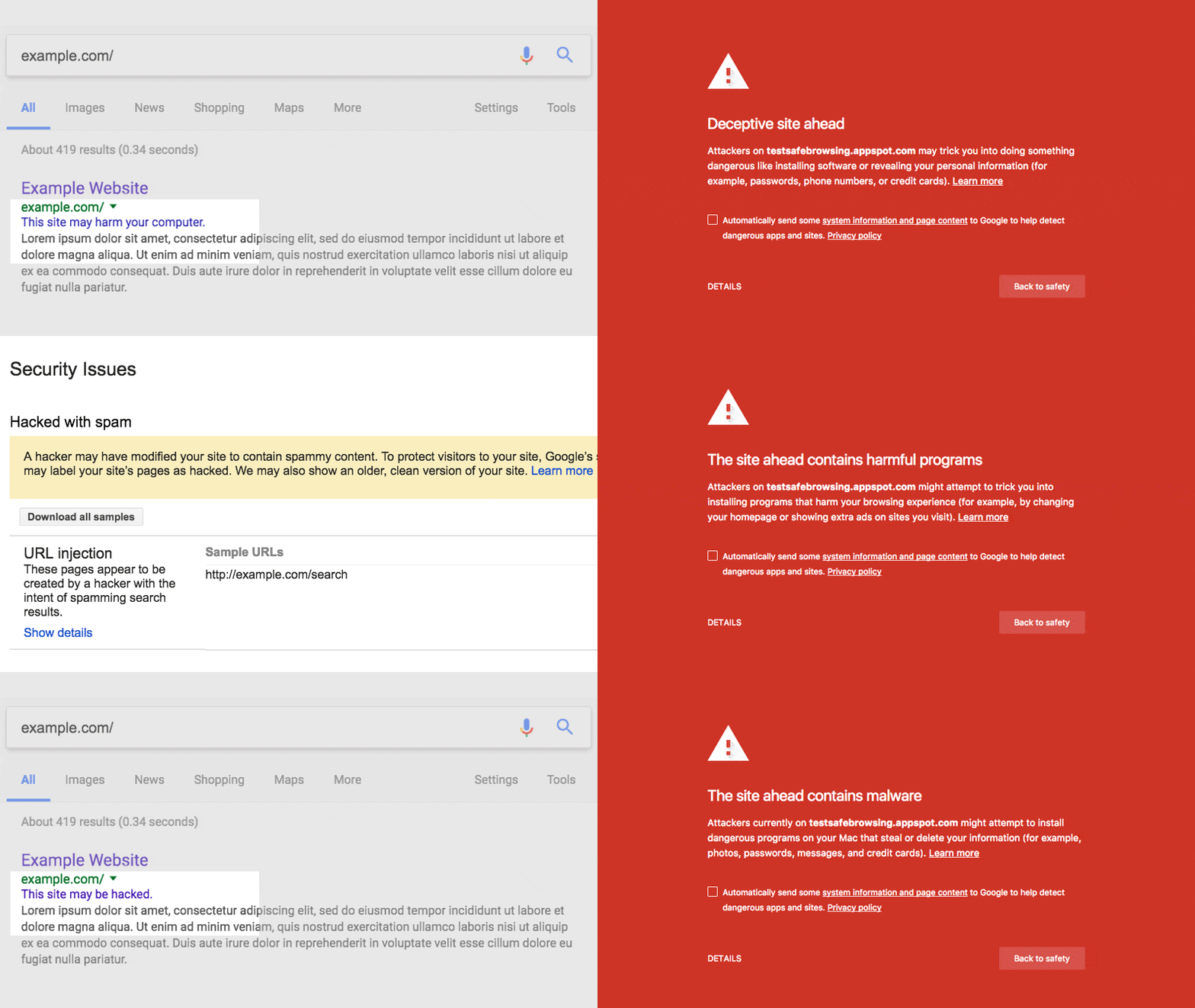
Google scans its index daily and when it finds a hacked site, it displays warning messages directly in search results alongside your listings — visible to every searcher who finds your website. Look for messages such as:
“This site may harm your computer”
“This site may be hacked”
Spammy meta descriptions you never wrote (pharmaceutical terms, gambling phrases, foreign-language characters)
Image Source: Web Fundamentals (developers.google.com)
Try searching for your brand name and domain on Google (and Bing) and carefully review the snippets. Hackers often use cloaking to serve malicious content only to search engine visitors — so what looks normal to you while logged in may be entirely different for a user arriving from Google. Test your site from an incognito window using a different device or IP to see what visitors actually experience.
Fix the issue as soon as you confirm hacked content in search results. Then submit a review request in Google Search Console to get the warning removed.
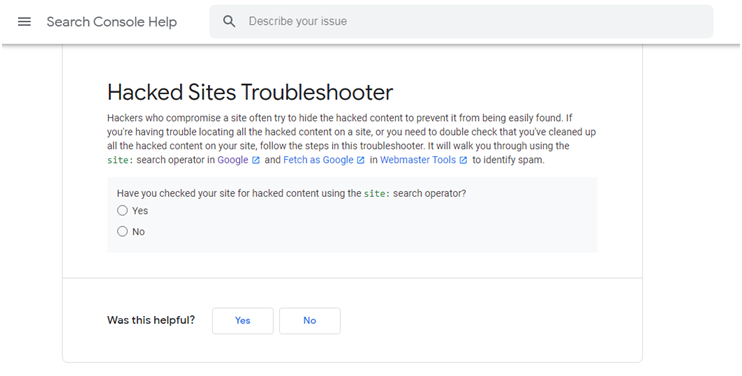
A.6. Use Google’s Hacked Sites Troubleshooter
This free tool from Google is particularly useful when you are having difficulty:
Locating all hacked content across your website
Double-checking your site after completing a cleanup
Image Source: Search Console Help
Google’s Hacked Sites Troubleshooter is specifically designed to help detect cloaked hacking — a technique where attackers hide malicious content from site owners and serve it only to actual search engine visitors, making it very difficult to detect through normal browsing.
B. How to Clean a Hacked Website
Speed is critical. Every hour a hacked website stays live, malware can spread to more files, additional visitor data can be stolen, and Google’s blacklist status can worsen — making the eventual recovery longer and harder. As soon as you confirm your website has been compromised, follow this structured cleanup process.
Immediate First Steps (Do These Right Now)
Before beginning the technical cleanup, take these containment steps immediately:
Enable Maintenance Mode: Use a plugin like WP Maintenance Mode or SeedProd (for WordPress) to take the site offline for regular visitors. This prevents further malware spreading to your users and stops ongoing SEO damage while you clean up.
Contact Your Hosting Provider: Alert them immediately. They may have already detected the hack, can help isolate infected files, and can prevent the infection from spreading to other accounts on the same server.
Change All Passwords: Change every password associated with your website — WordPress admin, hosting control panel (cPanel), FTP/SFTP, SSH, and the database. Use strong, unique passwords (16+ characters, mixed case, symbols, numbers). A common mistake is changing only the WordPress admin password while forgetting FTP access — hackers exploit forgotten entry points to re-upload malware even after cleanup.
Take a Backup (Even of the Hacked Site): Before making any changes, save a complete backup of the hacked site — files AND database. This preserves evidence you can analyze, and gives you a fallback if anything goes wrong during the cleanup process. Label it clearly (e.g., “HACKED_BACKUP_[DATE]”).
You can approach the cleanup using either of two strategies:
In-House Support: Leverage your in-house development or IT team to analyze the condition and fix the website.
Outsourcing: Seek the assistance of a professional security service (such as Sucuri or Wordfence’s site cleaning service) to remove the malicious code and repair your site.
Remember that each hacking attack is different. There is no one-size-fits-all fix. However, comparing your current site state with a clean backup — if available — is always the best starting point, as it immediately highlights everything that was modified.
B.1. Clean Your Website’s Hacked Files
When you have a recent clean backup, the safest approach is to replace infected files entirely. For manual removal of infected files from your website, follow these steps:
Log in to your server via SFTP or SSH.
Create a new backup before making any changes to the live server.
Locate recently modified files and confirm whether those modifications were legitimate.
Open suspicious files in a text editor and look for injected code — common signs include base64-encoded strings, eval() function calls, hidden <iframe> tags, and obfuscated JavaScript.
For WordPress: Download a clean copy of your WordPress version, themes, and plugins from the official repository. Use a diff tool (like Diffchecker) to compare against your live files and identify all unauthorized changes.
Remove or replace all infected files with clean versions.
Check wp-content/uploads/ for PHP files — these should never exist here. Any .php file found in this directory is almost certainly malware.
Perform a full test to confirm the website is functional before bringing it back online.
B.2. Clean Your Website’s Hacked Database Tables
The database is a common hiding place for injected spam content, hidden backdoor scripts, and malicious links. Connect to your database through phpMyAdmin or your hosting control panel’s database manager to perform a manual inspection:
Log in to phpMyAdmin (or your database admin panel).
Create a fresh backup of the entire database before introducing any changes.
Search for spammy keywords, suspicious links, and hidden <script> or <iframe> tags within database content — especially inside the wp_posts and wp_options tables for WordPress sites.
Look for suspicious PHP functions such as: eval, preg_replace, str_replace, base64_decode, move_uploaded_file, assert, gzinflate.
Open tables containing suspicious content and manually delete the malicious entries.
Test the site to confirm the database is operational after cleanup.
Remove any database access tools or temporary scripts you may have uploaded during the investigation.
Important caution: Some of these PHP functions are also used legitimately by plugins and themes. Research each instance before deleting — incorrect removal can break your site. When in doubt, use a reputable security plugin like Wordfence, Sucuri Security, or MalCare to perform the scan automatically and identify only confirmed malicious code.
B.3. Increase the Security for User Accounts
Whenever you notice any unfamiliar user account in your admin panel, delete it immediately. Review all admin accounts carefully — hackers routinely add hidden admin users to maintain backdoor access even after surface-level cleanup. It is strongly recommended to:
Assign only one admin account where possible, and keep the number of admin users to an absolute minimum.
Restrict privileges for other user roles (contributor, author, editor) to only what each role genuinely requires.
Review and revoke access for any user accounts that are no longer needed.
Non-secure usernames and passwords remain one of the primary entry points for attackers. A study by Michel Cukier at the Clark School found that the majority of attacks use “dictionary scripts” — automated software that cycles through common usernames and passwords to brute-force their way into websites.
Top usernames targeted by hackers:
Root
Admin
Test
Guest
Info
Adm
Mysql
User
Administrator
Oracle
Top passwords most easily guessed by hackers:
123456
Password
1234
12345
Passwd
123
Test
1
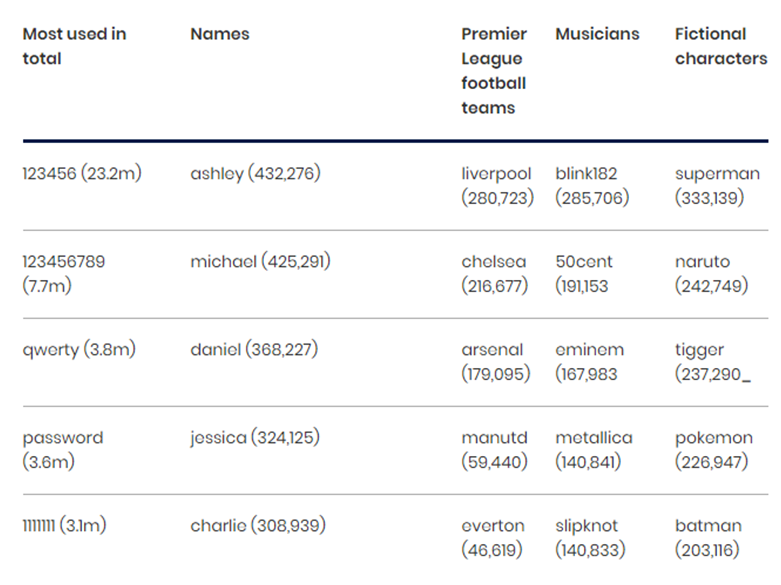
The UK’s National Cyber Security Centre (NCSC) published a separate analysis of 100,000 commonly breached passwords used in real-world attacks. The data is sobering — millions of accounts are compromised every year because of entirely predictable passwords.
Create strong, random, hard-to-guess passwords of at least 16 characters combining uppercase, lowercase, numbers, and symbols. Use a password manager (such as 1Password or Bitwarden) to generate and store them securely.
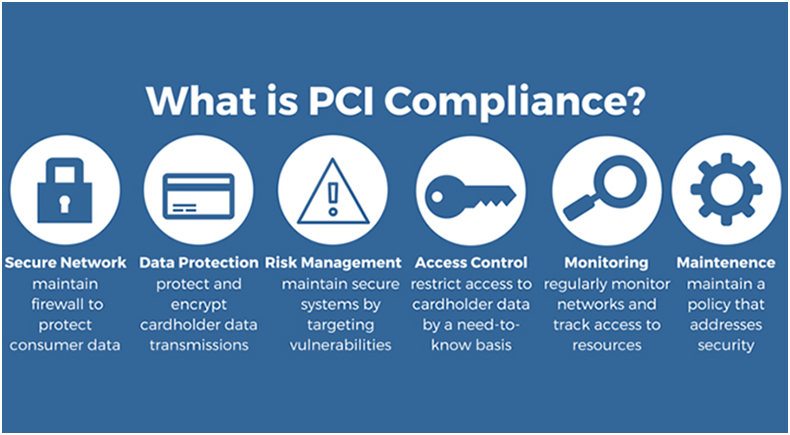
B.4. PCI Considerations for eCommerce Websites
If you operate an eCommerce website with a payment processing system, securing consumer credit card data is not just a best practice — it is a legal obligation under Payment Card Industry Data Security Standards (PCI DSS) compliance.
Image Source: i-verve
Contact your acquiring bank immediately if you suspect credit card data has been stolen. Ask about virtual credit card options for testing purchases safely. You are permitted to begin your own investigation initially, but you must engage a PCI Forensic Investigator (PFI) as soon as evidence emerges to ensure your customers’ payment data is properly protected and to fulfill your compliance obligations.
GDPR note: If your website collects personal data from users in the EU or UK, you may have a legal obligation to report a data breach to your relevant supervisory authority within 72 hours of discovery under the General Data Protection Regulation (GDPR). Being transparent with your affected users about the breach — while uncomfortable — is both a legal requirement and a trust-building practice that is far better than being exposed later for a cover-up.
B.5. After Cleanup: Submit a Review Request and Restore Access
Once your site is fully clean, do not forget these final steps to restore your site’s reputation with Google and your hosting provider:
Contact your hosting provider and let them know you have completed the cleanup — they can rescan the site and restore your account if it was suspended.
If your site was blacklisted by Google, go to Google Search Console → Security Issues → Request a Review. Provide details of what you found and what you fixed. Google typically processes review requests within 24–72 hours.
For WordPress, rebuild your .htaccess file by going to Settings → Permalinks and clicking “Save Changes.” This removes any malicious redirect rules that may have been injected into the file.
Re-enable your site for visitors and monitor closely for any recurrence over the following 2–4 weeks.
C. How to Secure a Website from Future Hackers’ Attacks
As the old proverb goes: “Prevention is better than cure.” The time and cost of recovering from a hack — in technical effort, lost traffic, damaged reputation, and potential legal exposure — far exceeds the investment required to properly secure your site. Here are the essential website security best practices for 2026:
C.1. Stay Updated and Reset Configuration Settings
Outdated software is the leading cause of website infections. Security researchers regularly discover vulnerabilities in CMS platforms, themes, plugins, and server software — and attackers start exploiting them within hours of public disclosure. Staying up to date closes these vulnerabilities before they can be exploited.
Image Source: Dreamstime.
Follow these update and configuration tips religiously:
Update your CMS (WordPress, Joomla, Drupal, etc.) to the latest version as soon as updates are released.
Update all themes and plugins regularly — including ones you are not actively using.
Delete all inactive or unused plugins and themes entirely. Deactivated plugins are still exploitable — they must be removed, not just switched off.
Reset passwords regularly for all access points: user accounts, cPanel, SSH, FTP, SFTP, and database.
Set user privileges according to the principle of least privilege — give each user only the minimum access they need to do their job.
After a hack, reinstall all plugins and extensions from clean official sources rather than restoring from potentially contaminated backups.
C.2. Enable Two-Factor Authentication (2FA)
Passwords alone are no longer sufficient to protect your admin accounts. Two-Factor Authentication (2FA) — also known as Multi-Factor Authentication (MFA) — adds a critical second layer of security by requiring a secondary verification step (a one-time code from an authenticator app) in addition to the password. Even if a hacker steals your password, they cannot log in without the second factor.
Enable 2FA for:
All WordPress admin accounts
Your hosting control panel (cPanel, Plesk)
Your domain registrar account
All email accounts associated with your website
For WordPress, use trusted 2FA plugins such as Google Authenticator by miniOrange, Two Factor Authentication (WP 2FA), or Wordfence Login Security. Use an authenticator app (Google Authenticator, Authy) rather than SMS-based codes, as SMS is vulnerable to SIM-swapping attacks.
C.3. Install SSL/HTTPS on Your Website
An SSL certificate (Secure Sockets Layer) encrypts all data transmitted between your website and its visitors, protecting login credentials, form submissions, and payment details from interception. Since 2025, Google marks all HTTP (non-HTTPS) websites as “Not Secure” in Chrome — directly impacting user trust, conversion rates, and SEO rankings.
To implement HTTPS correctly:
Obtain an SSL certificate — most reputable hosting providers offer free SSL via Let’s Encrypt.
Force HTTPS site-wide and implement HTTP Strict Transport Security (HSTS) headers to prevent protocol downgrade attacks.
Use modern protocols: ensure your server runs TLS 1.2 or TLS 1.3. Disable outdated SSL versions entirely.
Set up automatic certificate renewal to avoid unexpected expiry and security warnings.
C.4. Reduce Entry Points in Your Website
The fewer entry points your website exposes, the smaller your attack surface. Minimizing attack vectors — known as “hardening” — is one of the most effective long-term security strategies available:
Limit login attempts: Use a plugin to block IP addresses after a set number of failed login attempts, neutralizing brute force attacks.
Change the default WordPress login URL from /wp-admin/ to a custom path — this alone blocks the majority of automated bot attacks targeting the standard login page.
Disable XML-RPC if you do not use it — this is a common attack vector for brute force and DDoS attacks on WordPress sites.
Block access to sensitive directories (e.g., restrict direct access to wp-config.php and the /wp-admin/ folder by IP address where feasible).
Set correct file permissions: Folders should be set to 755, files to 644. The wp-config.php file should be 400 or 440.
Use a Content Security Policy (CSP) to control which external resources (scripts, stylesheets, iframes) your pages are allowed to load, preventing cross-site scripting (XSS) attacks.
C.5. Create Regular Backups as Your Recovery Safety Net
A reliable, tested backup strategy is your most important recovery tool when things go wrong. Create backups consistently and store them correctly:
Store backups in an offsite location — not on the same server as your website. If the server is compromised, a locally stored backup is equally compromised.
Use a reliable backup solution: UpdraftPlus, BlogVault, or your hosting provider’s automated backup system.
Configure backup frequency to match how often your site changes — daily for active sites, weekly for static ones.
Maintain multiple backup generations (at minimum: today’s, last week’s, last month’s) — this ensures you can roll back past the point of infection.
Test your backups regularly — a backup you have never tested may fail exactly when you need it most.
C.6. Scan Your Computer Systems
Some malware strains are specifically designed to jump from a local computer to a web server via FTP clients or text editors. If your computer or the computers of your team members are infected, the malware can reinfect a cleaned website immediately. Ensure that:
All team members who have website access run a reputable antivirus program on their operating systems.
FTP credentials are reset and any “remember me” sessions are cleared after a hack, to prevent re-infection through compromised local environments.
Image: Avast Antivirus, one of the most popular antivirus programs
C.7. Defend Your Website with a Web Application Firewall (WAF)
A Web Application Firewall (WAF) sits between your website and its visitors, analyzing all incoming HTTP traffic and blocking malicious requests before they ever reach your server. Cybersecurity experts universally recommend a WAF as an essential component of any serious website security strategy in 2026.
Image Source: Elegant Themes
A WAF provides the following critical protections:
Detects and blocks known hacking operations, malware signatures, and exploit patterns in real time
Protects against SQL injection, XSS (Cross-Site Scripting), CSRF, and other OWASP Top 10 vulnerabilities
Patches vulnerabilities in your site’s software at the network level — providing protection even before you have applied the official update
Blocks unauthorized access attempts to your wp-admin and wp-login.php pages
Detects and stops Distributed Denial of Service (DDoS) attacks
Offers caching capabilities that also improve page load speed
Popular WAF options for websites include Cloudflare WAF (available on free and paid plans), Sucuri WAF, and Wordfence (plugin-based WAF for WordPress). For WordPress specifically, security plugins like Wordfence and Sucuri Security provide both WAF functionality and real-time malware scanning in a single installation.
C.8. Install a Dedicated Security Plugin (WordPress)
For WordPress sites — which power over 43% of the entire web and are the most frequently targeted CMS — a dedicated security plugin provides layered, automated protection that goes far beyond what manual monitoring alone can offer. The most trusted WordPress security plugins in 2026 are:
Wordfence Security: Includes a WAF, malware scanner with daily signature updates, login security (2FA, login limits, CAPTCHA), and real-time threat intelligence. The free tier is powerful; the premium tier adds real-time firewall rule updates.
Sucuri Security: Provides server-side and remote scanning, post-hack security actions, file integrity monitoring, and a cloud-based WAF (on paid plans).
MalCare: Offers deep malware scanning that detects complex infections other plugins miss, with one-click malware removal available on paid plans.
iThemes Security (Solid Security): Focuses on hardening WordPress installations, with features like database backups, two-factor authentication, and file change detection.
Jetpack Security: Combines real-time backups, malware scanning, and spam filtering in one package — best suited for non-technical site owners who want an all-in-one solution.
Frequently Asked Questions About Hacked Websites
How do I know if my website has been hacked?
Common signs include: your site redirects visitors to unknown pages, Google displays a “This site may be hacked” warning in search results, you notice new admin accounts you did not create, your hosting provider sends a malware alert, your site loads unusually slowly, or you find strange PHP files in your wp-content/uploads/ folder. The most reliable confirmation is to run a security scan using a tool like Wordfence, Sucuri SiteCheck, MalCare, or VirusTotal, and to check your Google Search Console Security Issues report.
What should I do first if my website is hacked?
Act immediately: (1) Enable maintenance mode to take the site offline for visitors; (2) Contact your hosting provider; (3) Change all passwords for admin, hosting, FTP, SSH, and database access; (4) Take a backup of the hacked site before making any changes; (5) Run a full malware scan; (6) Begin the file and database cleanup process.
Can a hacked website be fixed without losing data?
Yes, in most cases — if you have a clean backup and act quickly. The goal of cleanup is to remove malicious code while preserving legitimate content. Tools like Wordfence and MalCare can remove malware without deleting your posts, pages, or media files. However, if the infection is deep or a clean pre-hack backup is available, restoring from backup is often the fastest and safest approach.
How long does it take Google to remove a hacked site warning?
After you submit a Review Request in Google Search Console (once all issues are resolved), Google typically processes the review within 24–72 hours. For severe or repeat offenses, reviews can take up to a few weeks. Ensure all malware and hacked content is genuinely removed before requesting a review — if Google finds remaining issues, the review clock resets.
How do hackers get into websites?
The most common entry points are: (1) Outdated plugins, themes, or CMS core files with known security vulnerabilities; (2) Weak or compromised passwords attacked via brute force or credential stuffing; (3) Nulled (pirated) themes or plugins containing pre-installed malware; (4) Poorly secured hosting environments; (5) Phishing attacks targeting admin credentials; (6) Cross-site contamination on shared hosting servers.
How much does it cost to fix a hacked website?
DIY cleanup using free tools (Wordfence free tier, phpMyAdmin manual review) costs nothing but time — typically 4–12 hours for an experienced developer. Professional malware removal services from providers like Sucuri or Wordfence typically range from $200–$500 per incident. Ongoing security plans that include malware monitoring and emergency cleanups range from $10–$50/month depending on the provider and plan level.
Conclusion
Website security is not a one-time task — it is an ongoing commitment that requires vigilance, regular maintenance, and a layered defense strategy. With cyberattacks occurring every 39 seconds and over 30,000 websites compromised daily, every website owner needs to treat security as a core business priority rather than an afterthought.
If you suspect your site has been hacked, act immediately: enable maintenance mode, change all passwords, notify your hosting provider, take a backup, and begin the structured cleanup process outlined in this guide. If your site is currently clean, invest in the preventive measures that matter most — regular updates, 2FA on all admin accounts, an SSL certificate, a Web Application Firewall, reliable backups, and a quality security plugin.
Remember: website security should be one of your top priorities as it not only protects your website’s performance and SEO rankings, but also safeguards your brand reputation and your visitors’ personal data. In the digital world, security is not a feature — it is the foundation everything else is built on.
Vijaya Raj Laxmi Tyagi has been an avid content writer for over five years with a keen interest in writing SEO articles and blogs. She also finds great enthusiasm in writing about a vast variety of topics, including gardening, interior designing, health & wellness, and tourism. Her educational background in Computer Science and Engineering has given her an edge to write about technologies that tend to mark a great impression on daily lifestyle and behaviour, while her intrigue towards Mother Nature drives her to discuss green topics.